
Watch and Follow

Was this article helpful?
173493 users found this helpful.
Enable Virtual Technology
Android and Windows operate on entirely different systems, but Virtualization Technology (VT) bridges the gap. By enabling VT, you can run mobile games and apps flawlessly on Windows 10 or 11. In this article, we’ll walk you through the essential steps to enable VT and help you troubleshoot any common issues you might encounter along the way.
Restart your computer, and press the F2 or Del key repeatedly as soon as your computer shuts down.
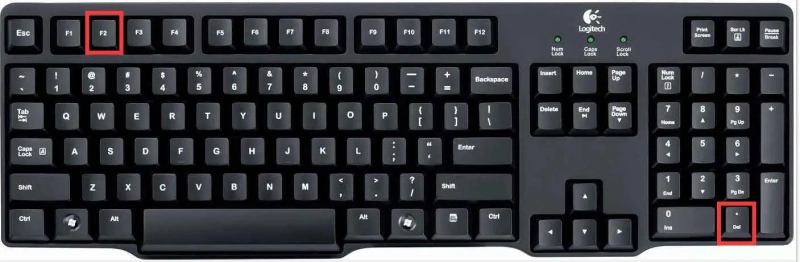
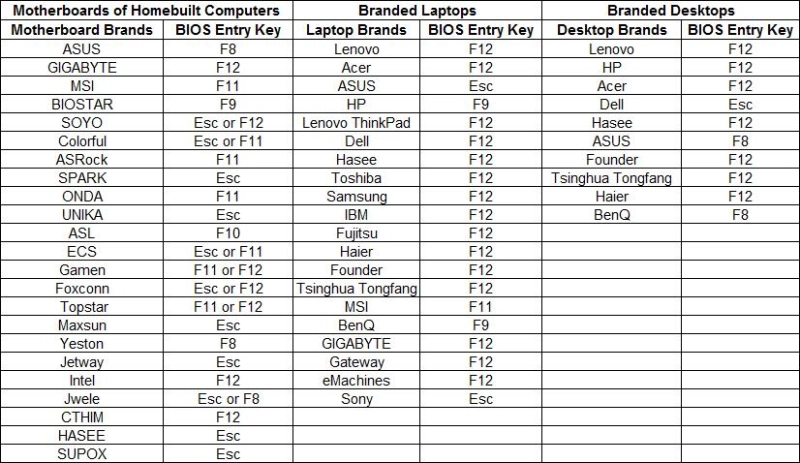
If you still can't enter BIOS after doing that, please try pressing another key. Each brand of laptop, desktop and motherboard have different BIOS entry keys. Please view the right-side table to find your own laptop, desktop or motherboard.
If you can't find yours, please search on Google for an accurate answer applying to your own brand of laptop, desktop or motherboard.
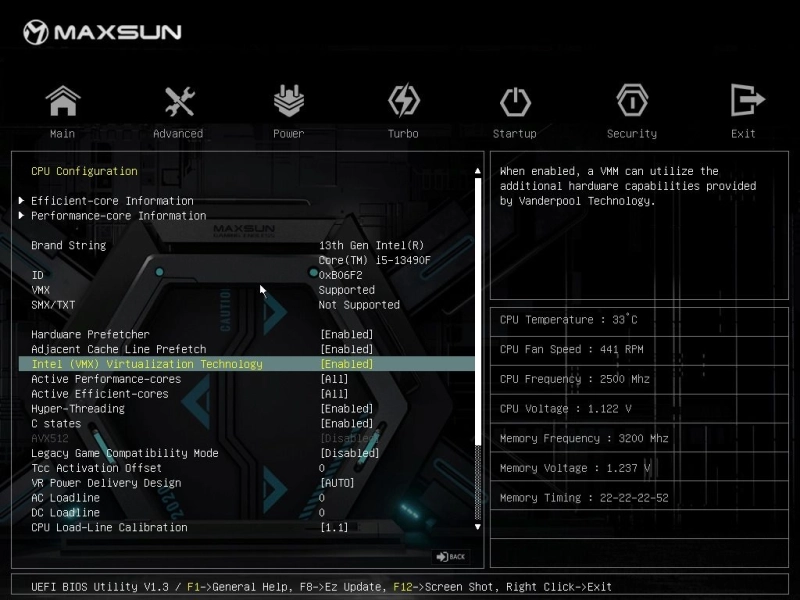
After you enter BIOS, press the ←, →, ↑ or ↓ key to switch from one item to another if you don't see your cursor on your screen. In addition, pressing the Enter key will allow you to have one item selected.
Find the VT item which is usually named Intel(R) Virtualization Technology, Virtualization, Virtual, VT-X or SVM. In general, you can find it here: Advanced > Processor Configuration/CPU Configuration. Select Intel(R/VMX) Virtualization Technology and change to Enabled.
Last but not least, press the F10 key to save and exit
Check this video out if you want to learn quickly how to enable Virtualization (VT) on your PC.
The emulator needs to run in an "independent" environment separating from the Windows OS, and VT is designed for providing this environment. Enabling virtualization allows the emulator to get more computer resources to run apps or games. In order to ensure the smoothness of gaming experience on LDPlayer, virtualization must be enabled.
Enabling VT will not cause any harm to the computer. Sometimes you can't even launch LDPlayer when it is disabled. On the contrary, after VT is enabled, the emulator runs 10 times faster! No more FPS lag/stutter in various games.
However, some PCs don't support virtualization. Now the question is, how do I know if virtualization is supported by my PC?
Step 1: Click the following link to download a portable tool, which can be used to judge whether VT is supported or enabled. leomoon.com/static/?file=leomoon-cpu-v_win.zip
Step 2: Directly double-click this file with an extension of .exe after it is downloaded.
Step 3: You will get one of the following three results.
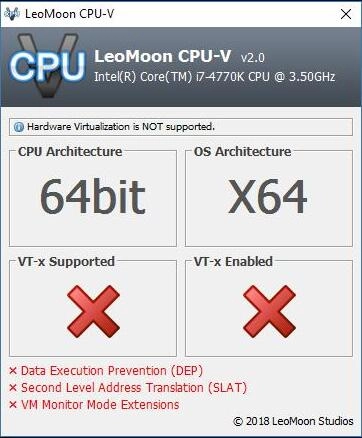
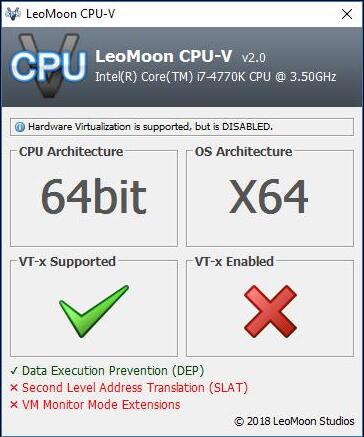
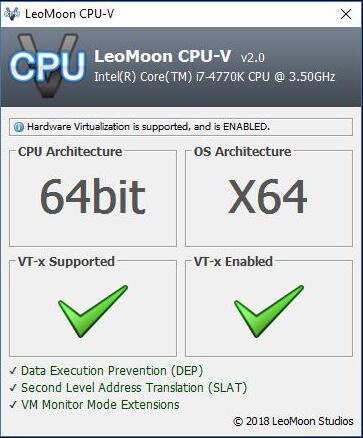
As you can see the pictures above, the first picture shows that virtualization is not supported and so can't be enabled. The second one shows that your PC supports virtualization but you have disabled it. If you are in the situation of the last picture, you can close this guide and enjoy your happy gaming on LDPlayer.
Q: How to second check whether virtualization is enabled?
A: You can check whether virtualization is enabled in the following way:
Go to Task Manger> Performance and check if Virtualisation is enabled. If it is, VT is enabled and so you can directly ignore this tutorial. If it isn't, VT is disabled or used by other computer programs.

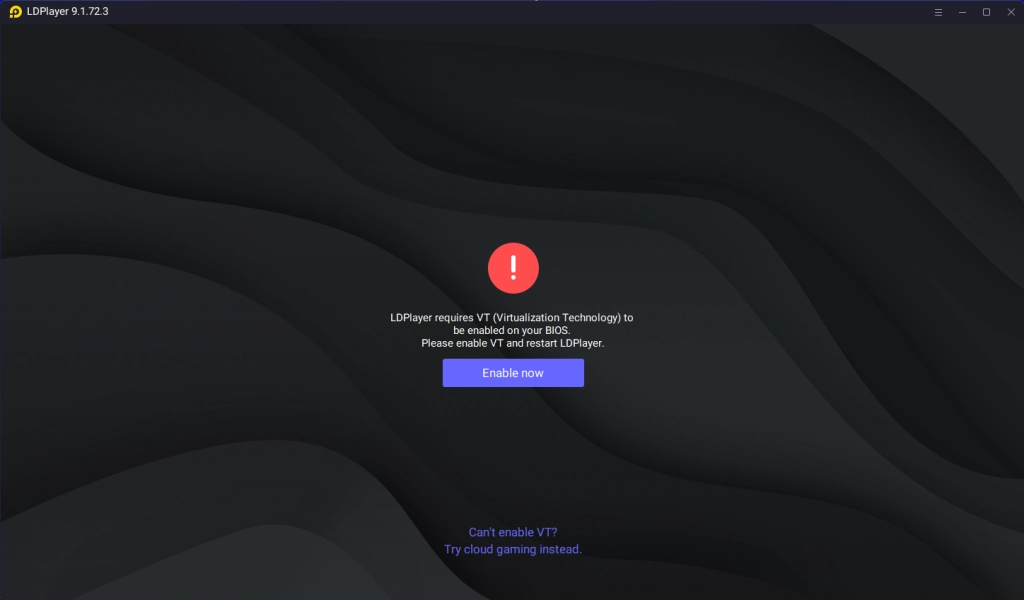
In addition, you can launch LDPlayer to check whether VT is enabled. If it isn’t, LDPlayer will automatically display an error screen and guide you through the process of enabling VT.
Q: PC boots too fast to access BIOS?
A: Please refer to this guide and follow the operations to solve the fast startup problem in the computer.
Q: VT has been enabled in BIOS, but not detected by LDPlayer?
A: The virtualization has been enabled on Windows 10/11, but the VT prompt still appears in the upper right corner of the emulator. This may be caused by the Hyper-V of your Windows operating system or the antivirus program Avast occupying the computer VT technology. Check this tutorial to solve the VT not detected by LDPlayer error.
Q: My LDPlayer is still lagging even after enabling VT. What other tutorials may help?
A: If you still feel that the emulator lags after enabling the virtualization technology, please read the following emulator tutorials.
Uninstall an update KB4100347 for Windows 10 to improve CPU performance by 10%
How to Update Graphics Driver for Maximum Gaming Performance
How to Switch From Integrated GPU to Dedicated GPU (NVIDIA-AMD)
Thank you for using LDPlayer, and we hope you will like it. If you have other questions, you can contact us through the following Email: support@ldplayer.net